Android Auto Not Connecting? Check the Setup Before Replacing Parts
A failed phone connection does not automatically mean a failed vehicle screen. Check the equipment, connection method and symptoms before choosing repairs.
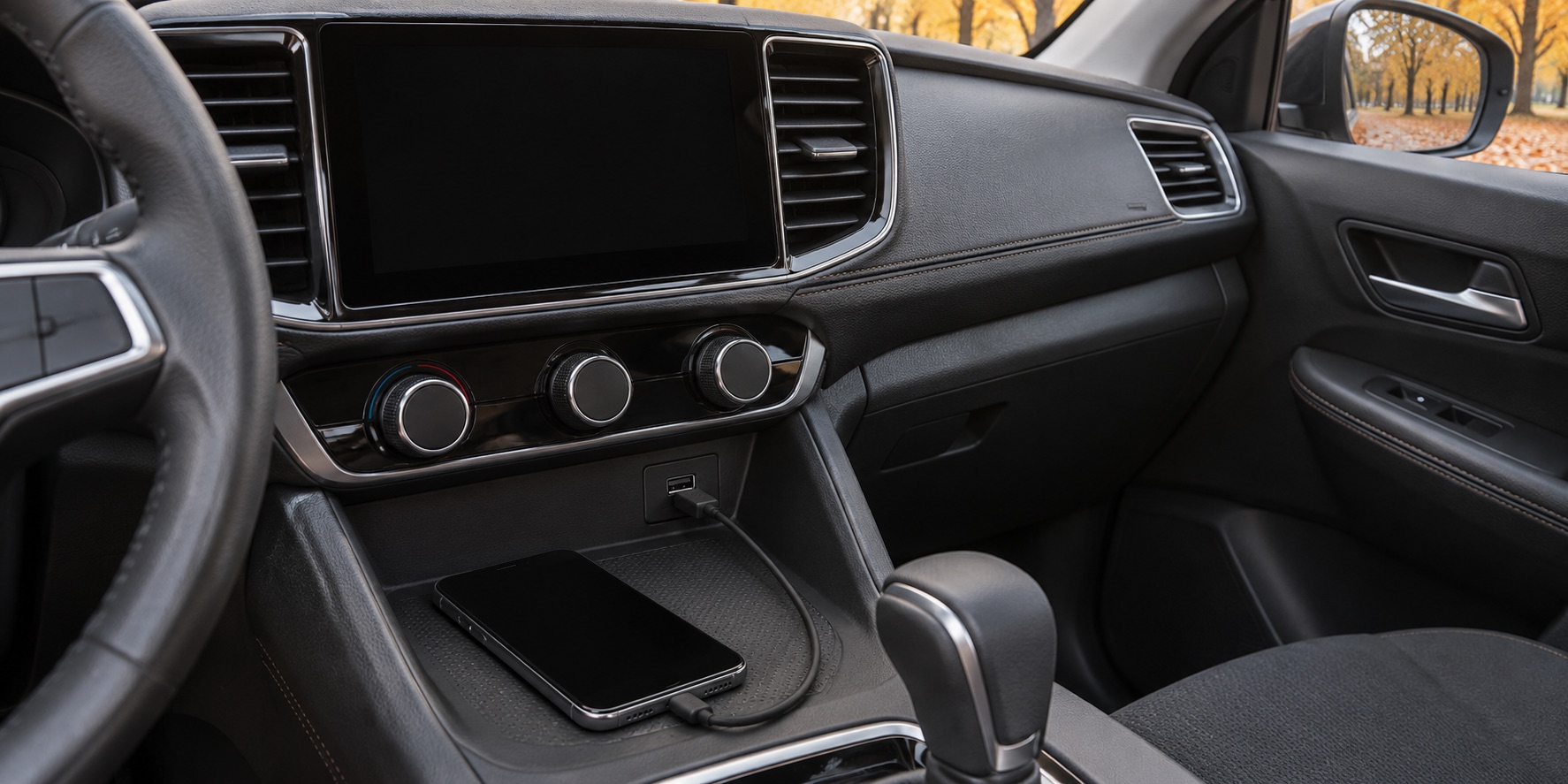
Android Auto refusing to connect can turn an ordinary trip into a frustrating search through cables and settings. It can also lead to an expensive assumption: that the vehicle's screen or infotainment unit must be faulty. Before choosing a repair, separate the connection problem from the other functions of the vehicle and record what actually happens.
For drivers in Bolton and Caledon, a few careful observations made while safely parked can make a service conversation much more productive. This is not a reason to troubleshoot while driving. If navigation or audio stops during a journey, leave the controls alone until you can stop safely and work out your next step.
Describe the failure before changing anything
“Android Auto does not work” can mean several different things. Does it never start, connect and then disconnect, show an unavailable icon, or open normally while one app has a problem? Does the whole vehicle display restart, or does only the phone connection disappear? Write down the difference rather than treating every symptom as the same fault.
Record any exact error message and whether it appears on the phone, the vehicle screen or both. A photograph taken while parked is useful, but avoid including personal messages, addresses or account details when sending it for support. You do not need to share a password to explain a connection failure.
Also record whether the setup ever worked. A first connection in a newly purchased vehicle is a different starting point from a setup that worked yesterday. Note a recent phone change, cable change or update without assuming that the last change automatically caused the problem.
Confirm the supported connection method
Google's Android Auto help explains that a USB port alone does not establish vehicle compatibility. Check support for the exact vehicle or aftermarket receiver, as well as the phone requirements. The presence of a charging socket is not a promise that the vehicle can display Android Auto through it.
Use the vehicle manual to identify the appropriate connection point and setup procedure. Confirm whether the particular system supports a cable connection, a wireless connection or both. Do not copy the procedure from a different trim level or model year just because its display looks similar.
If an aftermarket adapter or receiver is part of the setup, include its make and model in your notes. Explain the complete path between the phone and vehicle rather than describing an adapter-assisted connection as if it were the vehicle's original equipment. That gives support staff the information needed to choose the right instructions.
Give the cable a fair check
For a wired connection, Google recommends a high-quality cable under one metre long and advises against USB hubs or extensions. It also suggests trying the phone manufacturer's cable. Follow the connection instructions and compare with a suitable cable before concluding that a vehicle module has failed.
Change one thing at a time. If you switch the cable, phone and port together, a successful connection will not tell you which change mattered. Note which cable was used and what happened. Use only ports identified as appropriate in the manual, and do not force a connector that does not fit normally.
If a connector or cable looks damaged, stop using it and seek appropriate advice. Do not insert metal tools into a phone or vehicle socket, bend contacts or spray cleaner into the connection. A visible concern can be reported without trying to repair the socket yourself.
Check settings and software through official guidance
Google's troubleshooting guidance includes confirming that Android Auto is enabled in the infotainment system and restarting that system. For an aftermarket receiver, it directs owners to the receiver manufacturer's website for available firmware updates. Use the procedure for the actual equipment rather than an improvised reset sequence.
Chevrolet's support guidance similarly identifies phone and vehicle software, enabled settings and a compatible cable as checks for connection problems. For supported wireless connections, it calls for Bluetooth and Wi-Fi to be enabled. These are manufacturer examples of preliminary checks, not proof that a particular setting or update will solve every vehicle's problem.
Write down the software versions you can readily find and the steps you have already tried. Follow the relevant manufacturer's update instructions, including any conditions for carrying out the update. Do not disconnect the vehicle battery or install an unofficial software file simply to make an icon return.
Keep resets proportionate to the problem
A normal restart and a factory reset are not interchangeable instructions. Before deleting pairings or clearing settings, understand what information will be removed and how the connection will be set up again. If the official procedure is unclear, ask the manufacturer or service provider rather than repeatedly trying unrelated menus.
Bring your usual phone and cable to an appointment when requested. A shop cannot fully assess your specific connection using only a description of equipment left at home. Arrange any phone access directly and keep control of personal accounts; the useful evidence is the behaviour of the connection, not unrelated private content.
If another compatible phone has already been tried, report the result and the connection method used. A comparison can help narrow the investigation, but it should not be treated as a complete diagnosis by itself. Avoid declaring the car good or the phone faulty from one brief successful attempt.
Know when the concern is broader than Android Auto
Mention whether normal radio operation, other vehicle menus or the display itself are also affected. A whole-screen restart is important information even if you first noticed it when using navigation. Likewise, tell the shop about any separate vehicle warning rather than assuming it belongs to the phone issue.
Ask what the assessment established before authorizing a screen, USB assembly or infotainment unit. Which checks distinguish a connection or configuration problem from a confirmed vehicle fault? If software work is proposed, ask which equipment it applies to and how the original symptom will be checked afterward.
Review our service information or contact Albion Auto Service with the vehicle, phone and connection details. A clear account helps determine the appropriate next step, including manufacturer support when needed, before parts are ordered.
Featured image: AI-generated illustration of a phone and USB cable in a generic parked-car interior. It is not an Albion Auto shop or customer photograph, a branded interface screenshot or a demonstration of a diagnosed fault.
Common questions
Does a USB port mean the car supports Android Auto?
No. Confirm compatibility and the appropriate connection method for the exact vehicle or aftermarket receiver.
Should I replace the vehicle screen if the phone will not connect?
Establish the symptoms and complete the relevant connection checks first. A failed connection alone does not identify a failed screen.
What should I bring to an appointment?
Bring the usual phone and cable when requested, plus vehicle details, error messages and a record of the checks already tried.